Mathematical equations in scanned documents present a unique conversion challenge. Standard OCR was designed for linear text sentences that flow left to right. Equations are fundamentally different: they are two-dimensional structures with fractions stacked vertically, superscripts and subscripts at different levels, and specialized symbols that do not appear in ordinary text.
This guide explains why math conversion is harder than text conversion, how DocMorphix approaches it, and what to check in the resulting Word document.
Have a math document to convert?
Upload your scanned equations to DocMorphix and get editable Word equation objects.
Why Ordinary OCR Struggles with Equations
Standard OCR reads text in a single horizontal line: it identifies characters from left to right, groups them into words, and groups words into lines. This works well for paragraphs, headers, and simple lists.
Mathematical equations break this model completely. A fraction has a numerator above a horizontal bar and a denominator below it. Superscripts sit above the baseline. Subscripts sit below. Integral signs have limits above and below. Matrices have rows and columns. None of these fit a simple left-to-right character sequence.
When standard OCR encounters an equation, it typically produces garbled output the numerator and denominator appear on the same line separated by a slash (or worse, interleaved), exponents become regular-sized characters, and symbols like ∫, ∑, and √ are either misrecognized or omitted entirely.
Mathematical Notation Versus Ordinary Text
Equations are spatial structures, not linear sequences. Elements are positioned above, below, and beside each other in ways that carry mathematical meaning.
Math uses hundreds of symbols Greek letters (α, β, γ), operators (∫, ∑, ∏), relational symbols (≤, ≥, ≠), and set notation (∈, ∪, ∩) that are not part of standard text recognition.
The same character has different meanings depending on position. "2" as a superscript means "squared," as a subscript it is an index, and as regular text it is a number.
Fractions can contain fractions, exponents can have exponents, and summation limits can contain expressions creating deeply nested hierarchies.
Pasted Equation Images Versus Editable Equations
One common workaround is to crop equation images from the scan and paste them into Word as pictures. This preserves the visual appearance but creates dead content you cannot change a variable, fix a coefficient, or adjust formatting.
Editable Word equations use OMML (Office Math Markup Language), which is Word's native equation format. When you double-click an OMML equation in Word, the equation editor opens and you can modify every element change a variable name, adjust a fraction, add a term, or restructure the expression.
DocMorphix converts recognized equations into OMML structures where the equation grammar is successfully parsed. For expressions that cannot be fully parsed into OMML, the system may fall back to text-based representation to avoid producing incorrect equation structures.
Preparing a Math-Heavy Scanned Document
- Use the highest resolution scan available small symbols like subscripts and superscripts need clear pixels to be recognized.
- Ensure equations are not cut off at page margins.
- Avoid scans where equations are partially obscured by binding shadows or page curl.
- If the document has both text and equations, the entire page should be scanned do not crop individual equations out of context.
- For handwritten math, use dark ink and write symbols clearly. Distinguish carefully between similar characters (e.g., "x" vs "×", "1" vs "l").
Converting with DocMorphix
Upload your scanned document to the Equations to Word converter. DocMorphix processes the document in stages:
The system identifies which regions of the page contain equations versus regular text, then applies specialized math recognition to equation regions.
Recognized equations are parsed into an intermediate LaTeX-like representation that captures the hierarchical structure of the expression.
The parsed structure is converted into OMML Word's native equation format preserving fractions, subscripts, superscripts, and symbols as editable equation elements.
Equations are placed back into the document alongside the surrounding text, tables, and other content in the final .docx output.
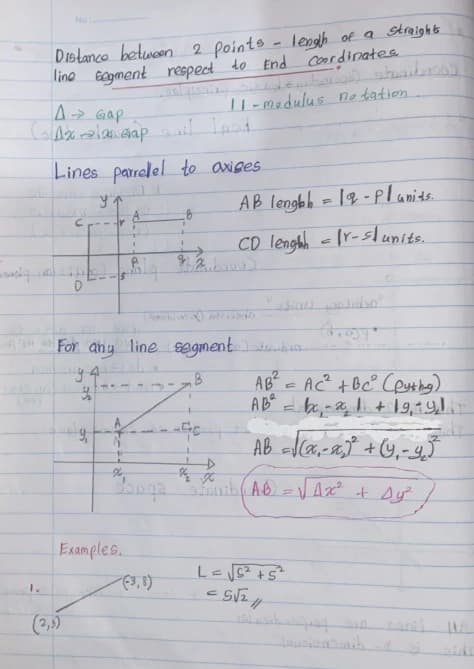
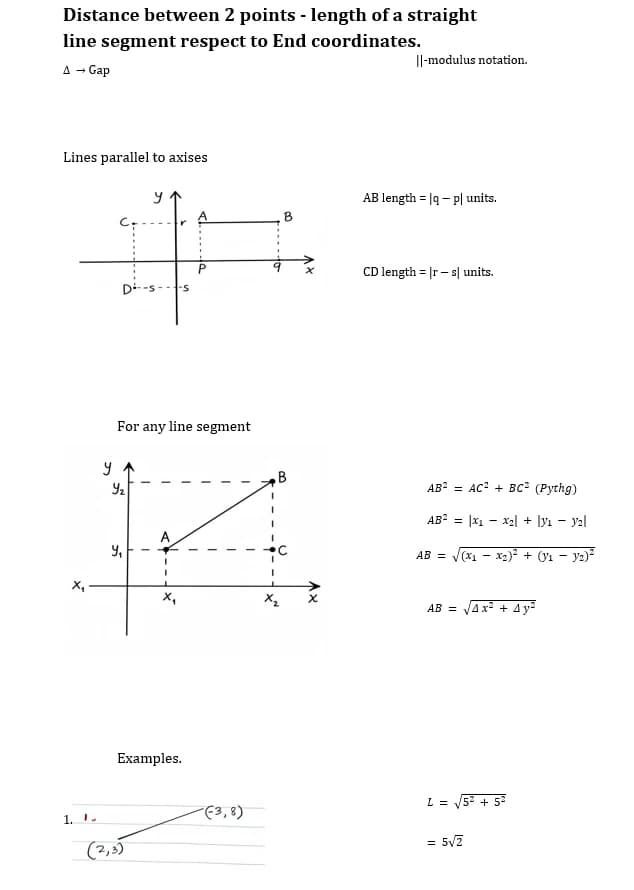
Scanned mathematical notation transformed into native Word OMML equation structures that can be clicked and edited in Word.
Equation editability depends on the complexity of the mathematical notation. Very complex or nested expressions may require manual adjustment in Word's equation editor.
Checking Fractions, Superscripts, Subscripts, and Symbols
After conversion, open the Word document and systematically check the equations:
- Click on each equation to verify it opens in Word's equation editor this confirms it is a real OMML object, not an image.
- Check fractions: verify that numerators and denominators are in the correct positions.
- Verify superscripts and subscripts: exponents should be raised, indices should be lowered.
- Look for Greek letter substitutions alpha (α), beta (β), gamma (γ) should appear as the correct Unicode characters.
- Check integral and summation limits upper and lower bounds should be positioned correctly.
- If an equation appears as plain text rather than a structured object, it may need manual recreation using Word's equation editor.
- Compare a sample of equations against the original scan to verify accuracy.
Convert your math documents to editable Word
Upload scanned equations and get Word documents with native OMML equation objects you can click and edit.
Frequently Asked Questions
Common questions and clarifications about equations to word.