A scanned PDF stores images of document pages, not editable text. If you try to open one in Word directly, you will usually get either a blank document or a collection of page images you cannot edit. Converting these files into real, editable Word documents requires more than basic text extraction.
This guide explains why scanned PDF conversion is difficult, how OCR and document reconstruction work together, and practical ways to evaluate and improve the resulting Word file.
Have a scanned PDF ready?
Upload it to DocMorphix and get an editable Word document back.
Why Scanned PDFs Are Difficult to Convert
A digital PDF created from a Word document or exported from software typically contains real text objects, fonts, and document elements. Word can read and edit those elements directly.
A scanned PDF is fundamentally different. When a paper document is scanned or photographed, the result is one or more images of the page. The PDF file stores those images, not the underlying text. Word cannot directly edit image pixels as document content.
This is why you cannot simply "select all" in a scanned PDF and paste it into Word, there is no text to select. The document needs OCR (optical character recognition) to identify characters from the page images before any meaningful conversion can happen.
Beyond character recognition, the document's structure headings, paragraphs, tables, columns, page breaks, equations, and images also needs to be understood and rebuilt. This is the step where most basic tools fall short.
OCR Versus Document Reconstruction
Basic OCR focuses on character-level recognition. It reads the image and outputs a sequence of words. This works well for simple documents with straightforward text paragraphs but falls apart with complex layouts.
OCR can recognize every word on a page and still produce a Word document that needs complete reformatting. Paragraphs may run together, tables may become scattered text fragments, and multi-column layouts may appear as a single jumbled column.
Document reconstruction adds a structural analysis layer on top of OCR. Rather than only identifying characters, it attempts to understand reading order, paragraph boundaries, table structures, equations, images, and the relationships between those elements. The goal is a Word document that can be edited naturally rather than one that requires reformatting from scratch.
DocMorphix combines both approaches in its scanned PDF to Word converter: OCR for text recognition and AI-powered document reconstruction for layout analysis. This does not guarantee a pixel-perfect copy of the original, but it significantly reduces the manual cleanup needed compared to basic OCR alone.
How to Convert a Scanned PDF
Most scanned PDF to Word conversion follows the same basic workflow, regardless of the tool used.
Start by providing the source file. This can be a scanned document, a photographed page, or any image-based PDF where the pages contain images rather than real text.
OCR analyzes each page image and identifies characters, words, and text lines. This step converts pixel data into recognized text that can be placed in a document.
Recognizing text is not always enough. Complex documents contain paragraphs, tables, columns, equations, figures, headings, and page structure. Reconstruction attempts to understand those relationships so the Word output is organized correctly rather than just a stream of extracted text.
The final output is a .docx file that can be opened and edited in Microsoft Word or compatible software. The goal is a document you can work with directly, without retyping from scratch.
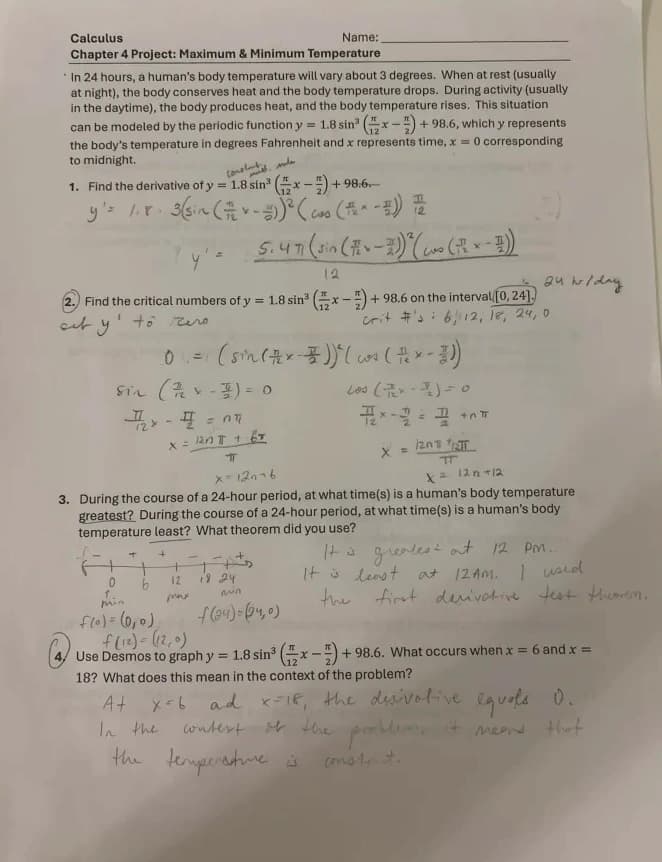
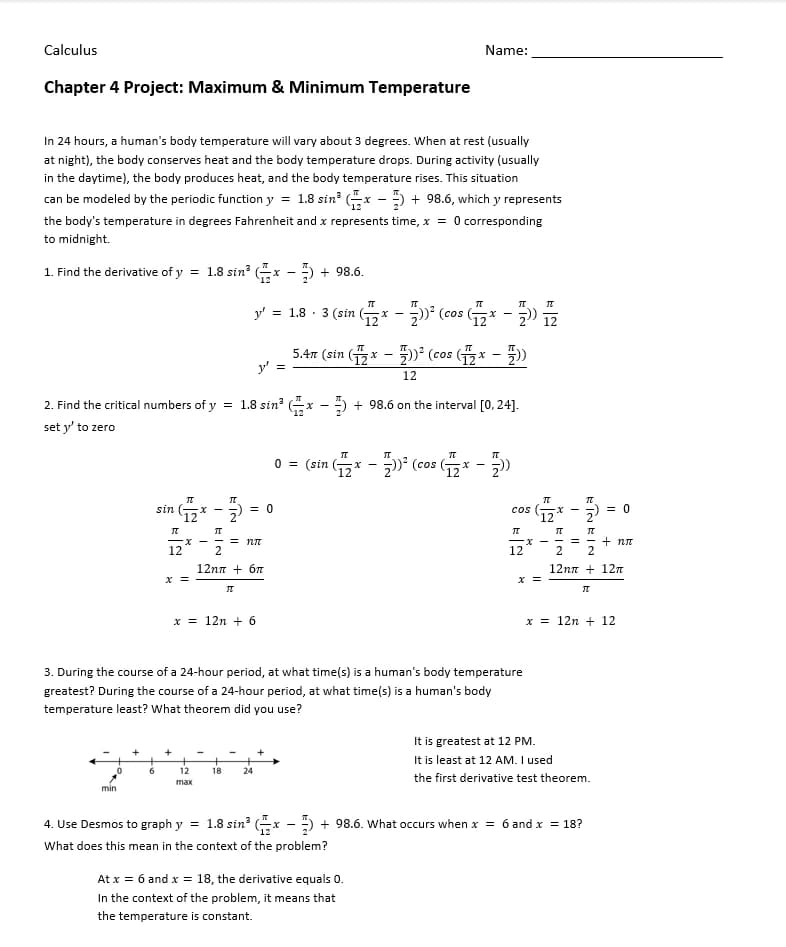
Comparison of a scanned multi-column document with tables and its reconstructed editable Word (.docx) layout.
Conversion fidelity depends on scan quality, page complexity, and document structure. Results are not pixel-perfect reproductions minor adjustments may be needed.
Why Formatting, Tables, and Page Breaks Get Damaged
Understanding where conversion commonly fails helps set realistic expectations and focus cleanup efforts on the right parts of the document.
OCR may identify all the text in a table but not reconstruct the row and column structure. The Word output may then show the table data as disorganized text rather than a proper table.
Page numbers, headers, and footers may be interpreted as part of the main body text rather than separate structural elements, which can clutter the converted document.
Standard OCR was not designed for mathematical notation. Complex formulas, fractions, and symbols may not be recognized correctly without specialized handling.
Two or three-column page layouts can confuse reading order. OCR may read across columns horizontally instead of reading each column separately, mixing content from different sections.
Editable reconstruction is not pixel-perfect. Fonts, spacing, and positioning in the Word output may differ from the original scanned document, particularly for complex layouts.
Inline images and diagrams in the scanned document may not land in the exact same position in the Word output, particularly when text flows around figures.
How to Inspect the Resulting Word Document
After conversion, take a few minutes to verify the output before relying on it. A quick review can catch issues that are easy to fix manually but could cause problems if left uncorrected.
- Open the .docx file in Microsoft Word (not just a preview tool) to see the full result.
- Check that headings are formatted as actual Word heading styles, not just large text.
- Click inside tables to verify that rows and columns form a proper grid rather than free-floating text.
- Look for equation placeholders and verify they display correctly in Word's equation editor.
- Enable "Show paragraph marks" (¶) in Word to see where line breaks and page breaks were placed.
- Compare a few representative pages against the original scan to spot missing paragraphs or reordered content.
Practical Ways to Improve Conversion Results
A few straightforward practices improve conversion quality significantly, regardless of which tool you use.
- Use the clearest scan available, avoid blurry or low-resolution scans.
- Keep pages as straight as possible when scanning.
- Ensure text is readable and not covered by shadows or fingers.
- Use higher-resolution scans where practical, especially for small text.
- Avoid extreme page rotation or skew.
- Review complex tables and equations after conversion and adjust if needed.
- If a document has mixed content (text, tables, equations), expect to spend a few minutes on post-conversion cleanup.
Ready to convert your scanned PDF?
Upload your scanned PDF to DocMorphix and get a structured, editable Word document. Test the conversion with your free starter credits.
Frequently Asked Questions
Common questions and clarifications about scanned pdf to word.