You have a table in a photograph, a scanned PDF, or a screenshot and you need to edit the data in Microsoft Word. The obvious approach is to insert the image into Word, but that gives you an image, not a table. You cannot click into cells, sort columns, or add rows.
This guide explains the difference between embedding a table image and converting it into actual Word table cells, what makes table extraction difficult, and how to verify the result.
Have a table image ready to convert?
Upload it to DocMorphix and get a native Word table you can edit cell by cell.
Image Tables Versus Editable Word Tables
When you paste or insert a picture of a table into Word, Word treats it as a single image object. You can resize and position the image, but you cannot select individual cells, change values, or apply table formatting.
An editable Word table is a structured grid of rows and columns. Each cell is an independent container that can hold text, numbers, or formulas. You can sort data, adjust column widths, merge or split cells, add borders, and apply shading, none of which is possible with a pasted image.
Converting a table image to an editable table requires identifying the grid structure from the image, where the rows and columns are, which cells are merged, and what text belongs in each cell.
Challenges with Rows, Columns, and Merged Cells
Many printed tables use minimal borders or no borders at all. Without visible lines, identifying cell boundaries requires analyzing text alignment and whitespace.
Financial and scientific tables often have multi-level headers with merged cells spanning several columns. Detecting these spans correctly is one of the hardest parts of table extraction.
A single cell may contain several lines of wrapped text. Basic OCR may interpret each line as a separate row, splitting one cell into multiple table rows.
Decimal points, currency symbols, and negative-number parentheses can confuse character recognition, especially when columns are narrow or spacing is tight.
Photos taken at an angle distort grid lines and cell boundaries. Perspective correction helps, but heavily skewed images still produce worse results.
Manual Conversion Methods
If you only have one small table, manual retyping is sometimes the most practical option. Create a Word table with the correct number of rows and columns, then type each value. For tables with fewer than 20 cells, this takes only a few minutes.
Another manual approach is to use Excel as an intermediate step. Type or paste the data into Excel cells, then copy the range and paste it into Word as a table. This preserves column alignment better than typing directly into Word.
Manual methods become impractical when you have multiple tables, large data grids, or recurring conversion tasks. That is where automated table extraction tools save significant time.
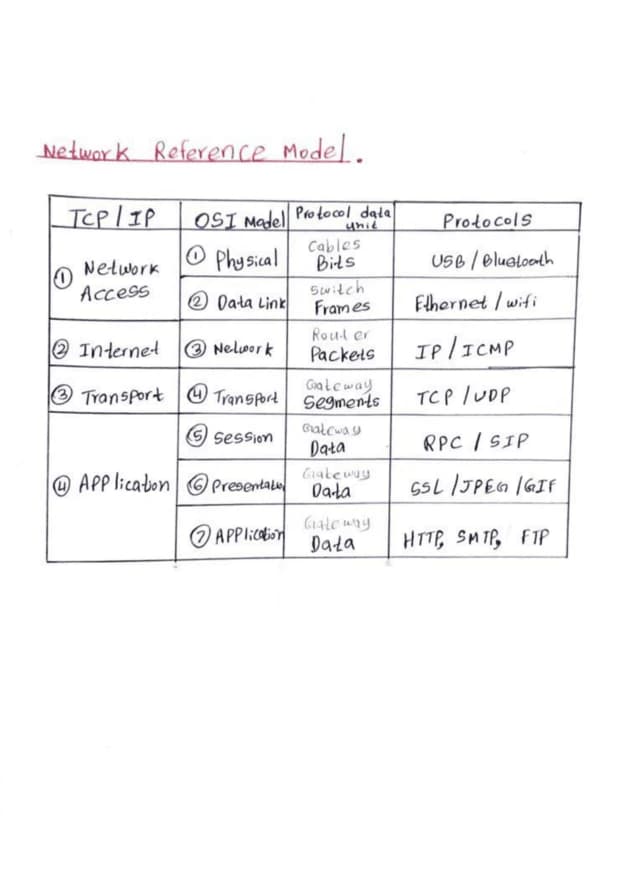
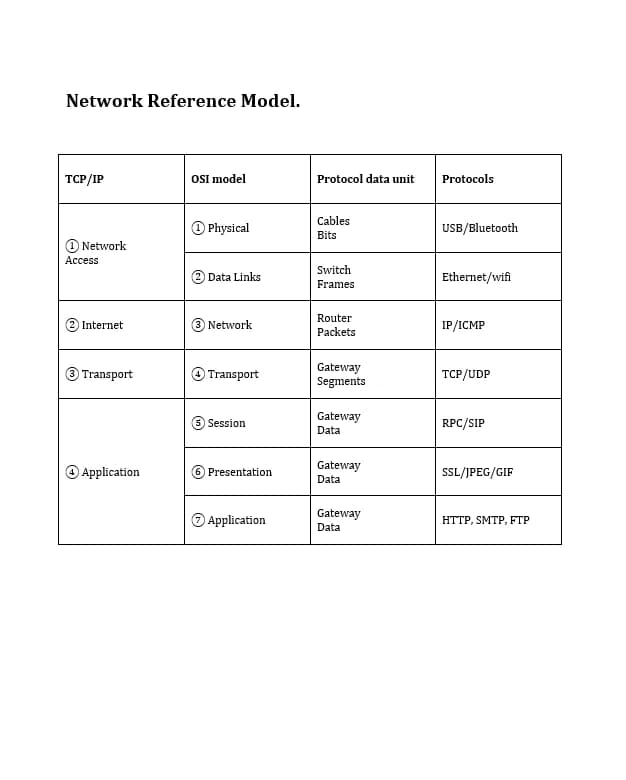
A scanned financial data table converted into true editable Word grid cells with intact column alignments and header spans.
Table extraction accuracy depends on image clarity, grid line visibility, and layout complexity. Complex merged headers may need minor adjustments.
Converting with DocMorphix
DocMorphix uses table structure recognition (TSR) to analyze the geometry of the table image. It identifies gridline intersections, maps row and column coordinates, detects merged cell spans, and generates a native Word table rather than a text dump.
The workflow is straightforward: upload your table image or scanned PDF to the Tables to Word converter, let DocMorphix process the document, and download the resulting .docx file. The output contains actual Word table objects you can edit.
For best results, use a clear, high-resolution image where the table text is legible. Crop the image to include only the table if possible, surrounding text and decorations can interfere with grid detection.
Checking and Correcting Table Structure
After conversion, open the .docx file in Microsoft Word and verify the table:
- Click inside the table to confirm you can select individual cells.
- Check that the number of rows and columns matches the original.
- Look for incorrectly split or merged cells, especially in the header area.
- Verify that numeric data is in the correct columns and that decimal points align.
- If a cell was split into two rows, merge them manually using Word's "Merge Cells" option.
- Adjust column widths if the proportions differ from the original.
Convert your table image to an editable Word table
Upload a scanned table, screenshot, or photo and get back a Word document with real, editable table cells.
Frequently Asked Questions
Common questions and clarifications about tables to word.