You have a paper document in front of you and need a digital version you can edit. Snapping a photo with your phone is the fastest way to capture it, but a photo is just an image you cannot select text, fix typos, or reformat paragraphs.
This guide explains how to turn that photo into a structured, editable Microsoft Word document using OCR and document reconstruction, and how to prepare your photos to get the best results.
Have a document photo ready?
Upload it to DocMorphix and get an editable Word file back.
Inserting a Picture Into Word Versus Converting the Content
Word's "Insert Picture" feature places the photo inside the document as a visual element. The image appears on the page, but Word does not read the text in it. You cannot click on a word in the image, change a sentence, or apply heading styles.
Converting the photo with an image to Word converter means extracting the text from the image using OCR and placing it into the document as real, editable text organized into paragraphs, headings, and tables that behave like normal Word content.
The distinction matters because an inserted image adds visual reference only, while converted content gives you a working document you can modify, search, spell-check, and reformat.
How OCR Works with Document Photos
OCR (optical character recognition) analyzes the pixels of your photo and identifies individual characters, words, and lines of text. This process converts visual information into machine-readable text.
However, a document photo introduces challenges that flatbed scans do not. Phone photos often have uneven lighting, slight perspective distortion, page curl near the binding, and lower contrast than a proper scan. OCR engines must compensate for these artifacts.
Beyond text recognition, document reconstruction analyzes the spatial arrangement of text blocks to identify which text is a heading, which forms a paragraph, where columns start and end, and where tables exist. Without this step, OCR output is just a wall of unformatted text.
Preparing a Clear Photograph
The quality of your photo directly affects conversion accuracy. A few simple habits make a significant difference:
- Place the document on a flat, contrasting surface dark text on white paper with a dark desk underneath.
- Position your camera directly above the document, not at an angle. Most phones have a document scanning mode that helps.
- Ensure even, diffused lighting. Avoid harsh shadows from overhead lights or window glare.
- Fill the frame with the document. Leave a small margin, but do not include too much background.
- Hold the camera steady or prop it against something. Blur reduces OCR accuracy dramatically.
- For multi-page documents, photograph each page separately rather than trying to capture two pages at once.
Step-by-Step Conversion
Take a sharp photo of the document or select an existing image from your files. Crop to include only the document area.
Upload your image to the DocMorphix Image to Word converter. You can upload multiple pages and reorder them before processing.
DocMorphix runs OCR on the image, then analyzes the layout to identify headings, paragraphs, tables, and other structural elements.
Download the resulting .docx file and open it in Microsoft Word. Review the content, check formatting, and make any necessary adjustments.
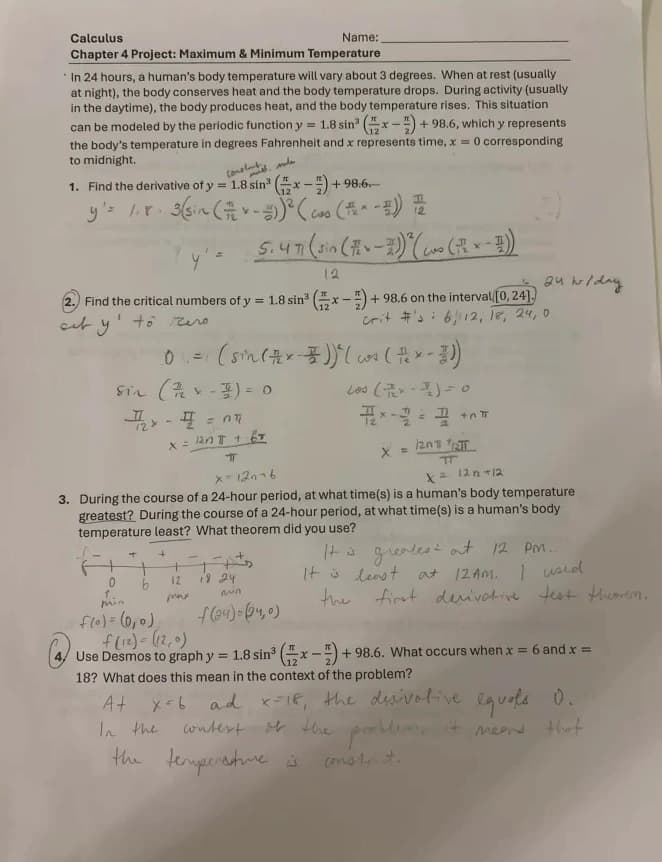
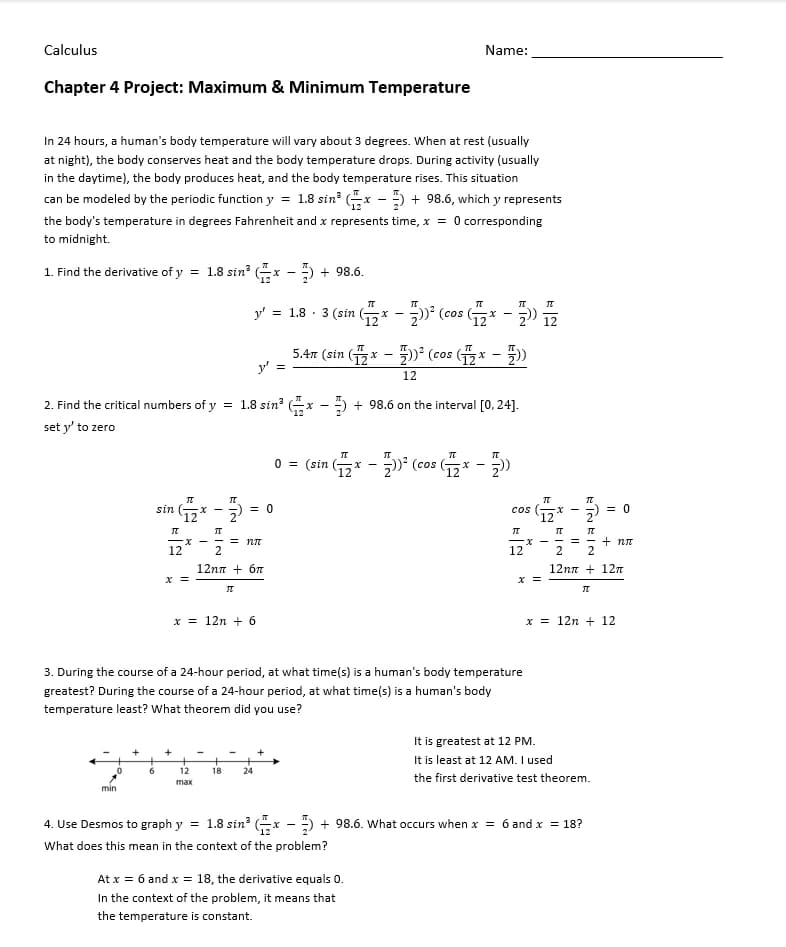
A camera photograph of a printed article converted into real paragraphs, headings, and clean typographic hierarchy in Word.
Conversion fidelity depends on input resolution, lighting, and layout complexity. Complex documents may require minor adjustments in Microsoft Word.
Handling Paragraphs, Headings, and Formatting
Document reconstruction aims to produce meaningful Word formatting rather than a continuous block of text. Here is what to expect:
- Headings are identified by size and weight differences and assigned Word heading styles where detected.
- Paragraphs are separated based on spacing and indentation analysis.
- Lists and bullet points are detected from visual markers (dots, dashes, numbers) and converted to Word list formatting.
- Tables are extracted as native Word table objects when grid structure is identified.
- The original fonts will not be matched exactly Word uses its own installed fonts.
Checking the Resulting Word File
After conversion, spend a few minutes reviewing the document:
- Read through the text and fix any OCR errors especially for unusual fonts or low-contrast areas.
- Verify that headings are assigned the correct Word heading level.
- Check tables for correct row and column structure.
- Look for paragraphs that were incorrectly merged or split.
- If images were present in the original, they may appear as embedded pictures in the Word file.
Turn your document photo into editable Word
Upload a phone photo or scanned image to get a formatted, editable Word document.
Frequently Asked Questions
Common questions and clarifications about image to word.