You have pages of handwritten notes lecture notes, meeting minutes, a personal journal, or research drafts and you need to turn them into typed text you can edit, search, and share. Retyping everything manually is tedious and time-consuming.
This guide explains how handwriting recognition works, what affects accuracy, and how to get the best results when converting handwritten documents to Word with a dedicated handwriting to Word converter. It does not promise perfect results handwriting recognition is inherently imperfect but it can save significant retyping effort.
Have handwritten notes to digitize?
Upload a photo or scan to DocMorphix and get typed Word text back.
How Handwriting OCR Works
Standard OCR is designed for machine-printed text consistent fonts, uniform spacing, and predictable character shapes. Handwriting introduces variability that standard OCR was not built for: connected letters in cursive, inconsistent letter sizes, slanted baselines, and personal quirks in letter formation.
Handwriting text recognition (HTR) uses neural network models trained on large datasets of handwritten text. Rather than matching individual characters against templates, these models analyze sequences of strokes and use contextual patterns to predict words. This approach handles the natural variation in handwriting better than character-by-character matching.
However, even modern HTR models have limits. Very messy handwriting, unusual abbreviations, domain-specific terminology, and non-Latin scripts remain challenging. The converted output should always be proofread.
Preparing Handwriting for Recognition
The quality of the input directly affects recognition accuracy. While you cannot retroactively change how the notes were written, you can control how they are captured:
- Use a dark pen on white or light paper black ink on white paper provides the best contrast.
- Avoid pencil, light-colored ink, or highlighter-covered text.
- Place the page flat on a surface and photograph from directly above.
- Ensure the lighting is even no shadows falling across the text.
- Fill the frame with the page, leaving minimal border space.
- For lined paper, the horizontal lines generally do not interfere, but heavy decorative borders can confuse detection.
- If multiple pages exist, photograph each page separately.
Converting Handwritten Notes into Word
Photograph or scan each page. Ensure the text is sharp and well-lit. Most phone cameras produce sufficient resolution.
Go to the Handwriting to Word converter and upload your images. You can upload multiple pages and reorder them.
DocMorphix applies neural handwriting recognition to identify text, then organizes the output into paragraphs in a Word document.
Download the .docx file and open it in Word. Carefully proofread the text, paying attention to proper nouns, technical terms, and any passages where the original handwriting was unclear.
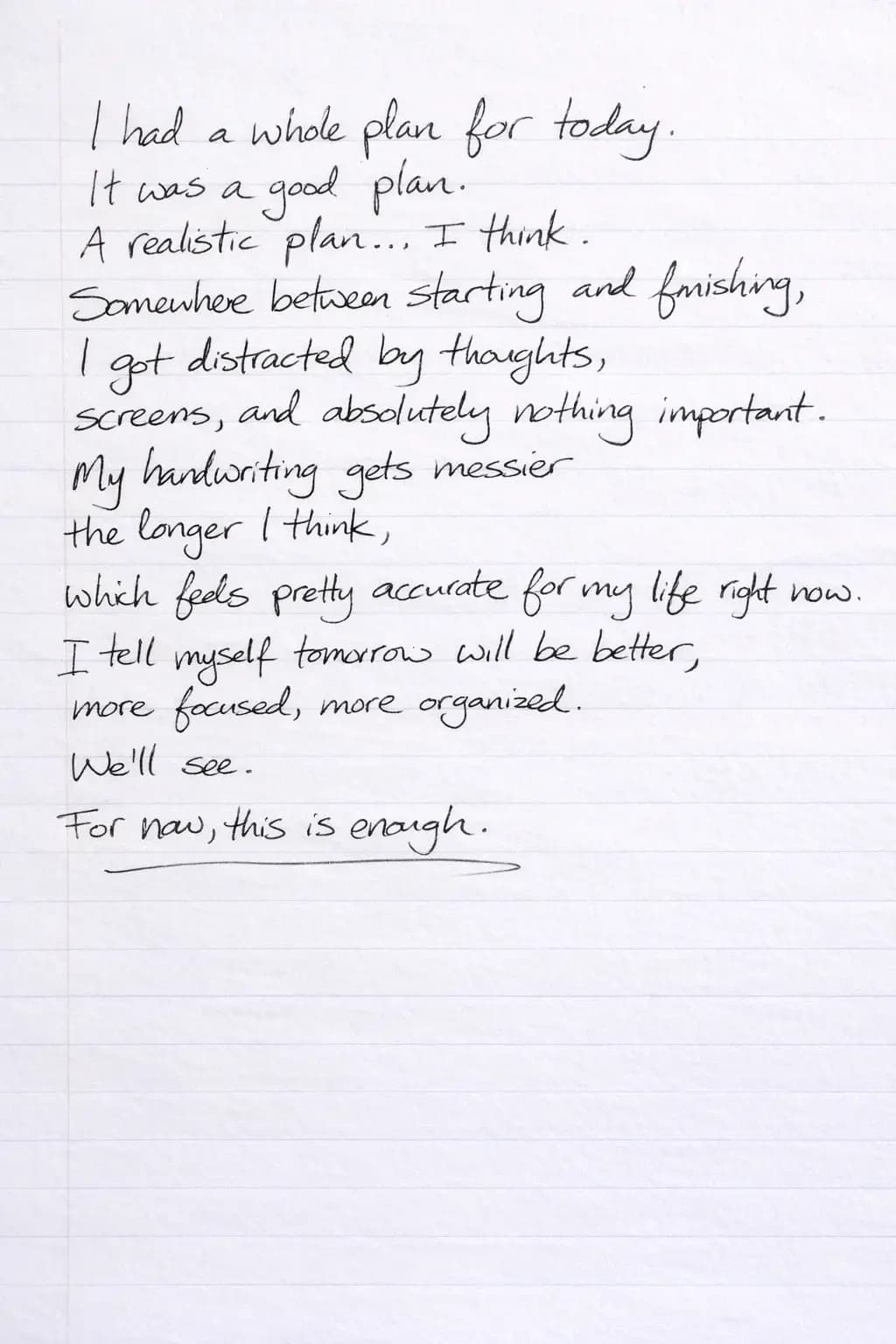
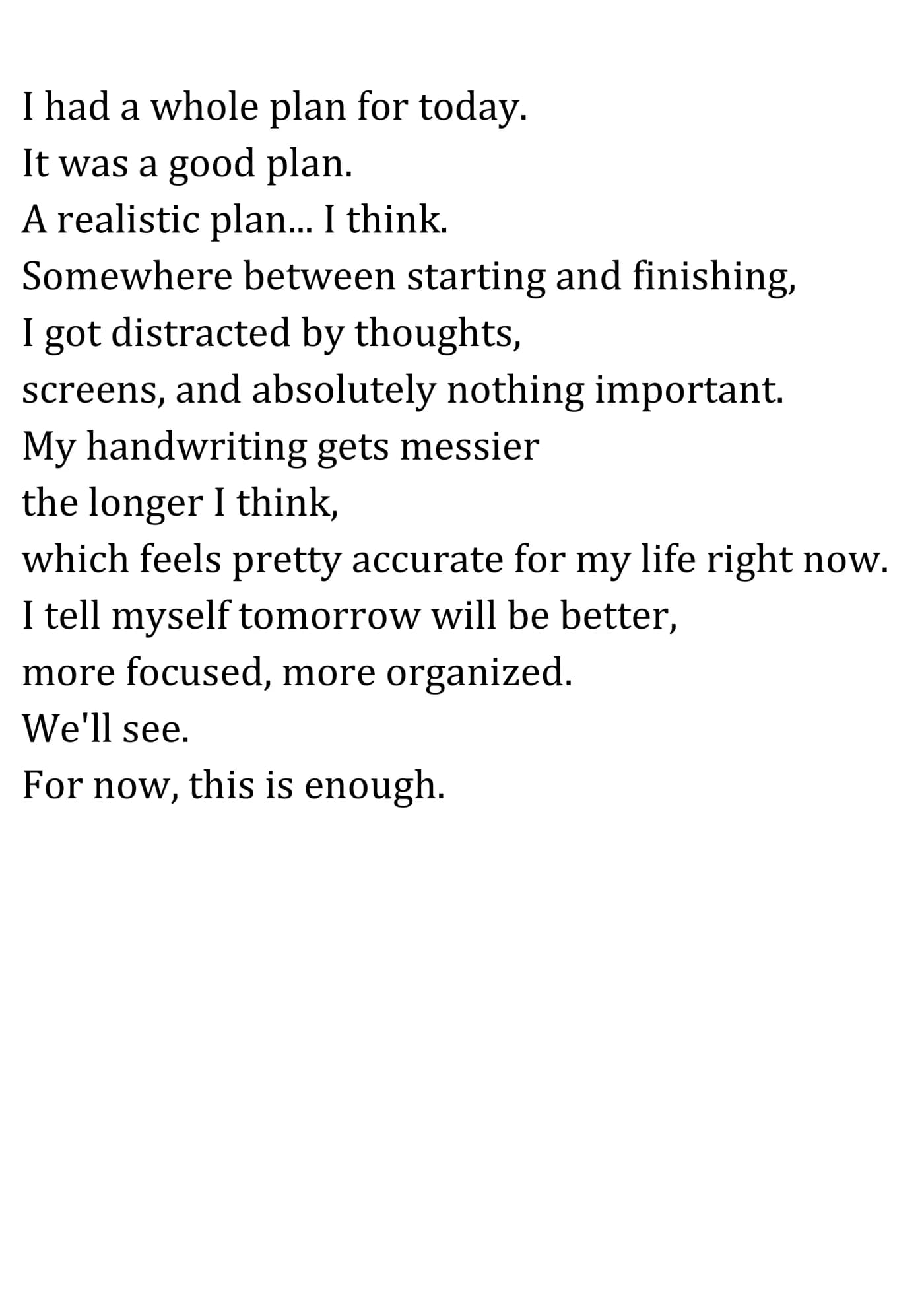
Handwritten cursive and print notes digitized into cleanly typed, editable Word paragraphs with preserved line breaks.
Handwriting recognition accuracy depends on writing clarity, pen contrast, and image quality. All converted text should be proofread before use.
Common Recognition Errors
Even with advanced recognition models, certain patterns consistently cause errors:
Letters like "a" and "o", "l" and "1", "n" and "u", and "rn" and "m" are commonly confused in handwriting.
Names, acronyms, and domain-specific abbreviations are not in the model's vocabulary and may be misrecognized.
Handwritten numbers near text can be misclassified, especially "0" vs "O" and "5" vs "S".
Corrections written over original text confuse the recognizer, which may output both versions or garbled characters.
Text written in margins, between lines, or with arrows may be placed out of order or omitted.
Handling Cursive Writing and Unclear Characters
Cursive handwriting presents unique challenges because letters connect, making it difficult to determine where one character ends and the next begins. Neural HTR models handle this by analyzing word-level patterns rather than isolating individual letters.
For heavily stylized cursive, recognition accuracy may drop. If you know certain pages are particularly messy, consider those pages as candidates for manual correction rather than expecting perfect automated results.
Unclear characters where even a human reader would need context to decide between two possible letters will sometimes be guessed incorrectly. The word-level context helps (the model predicts likely words rather than random character sequences), but it is not infallible.
Proofreading the Converted Output
Proofreading is not optional with handwriting conversion. Treat the Word output as a strong first draft rather than finished text:
- Read the entire document alongside the original handwritten pages.
- Use Word's spelling and grammar checker to catch obvious errors.
- Pay special attention to numbers, dates, proper nouns, and technical terms.
- Check paragraph breaks the converter may merge or split paragraphs differently than you intended.
- If entire words look wrong, compare them against the original handwriting to see if the error is recognition or if the handwriting itself was ambiguous.
Digitize your handwritten notes
Upload photos or scans of handwritten pages and get typed, editable Word text. Proofread and refine from there.
Frequently Asked Questions
Common questions and clarifications about handwriting to word.